Getting Started
Verify System Version
Check your software version using one of the methods below.
Note
- The minimum software version for running Python scripts:
Version 10.4 (Centos)
Warning
If you need help or instructions on how to update your software, contact us.
Verify using GUI:
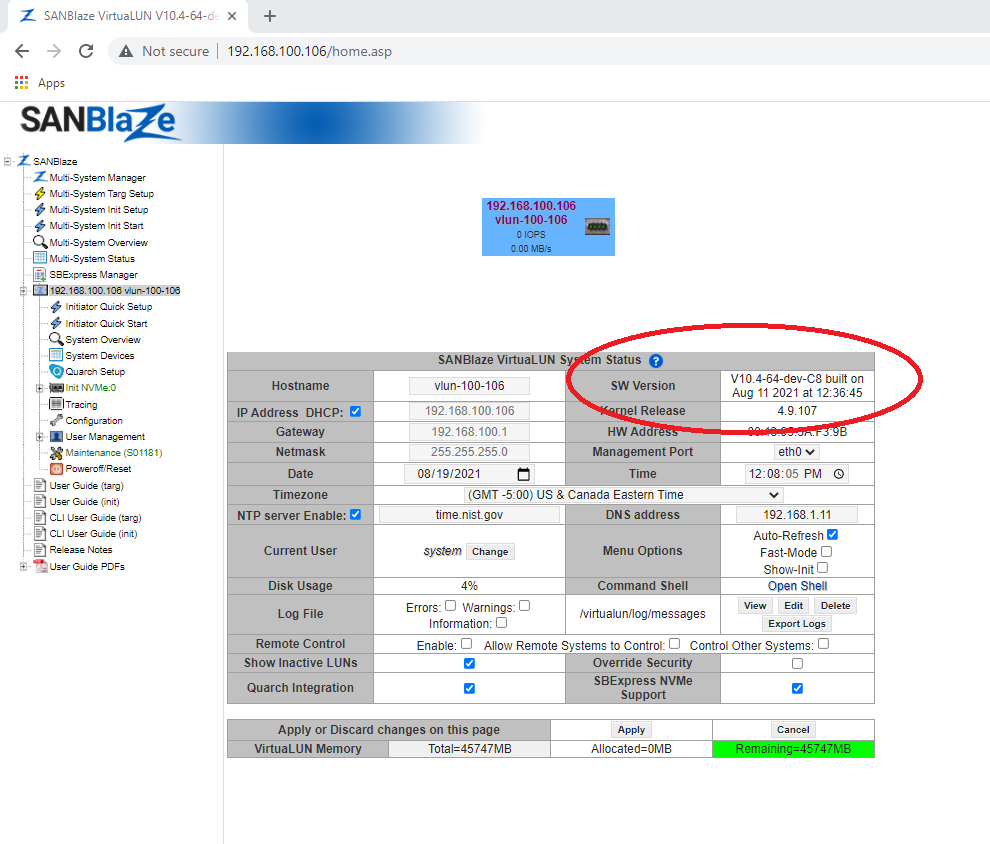
In a browser, enter the IP Address of your SANBlaze system.
The home page shows your current version.
Verify using the commandline:
$ cat /proc/vlun/config | head | grep Version
Sample output
>> Version=V10.4-64-Beta1-C8 built on Sep 13 2021 at 10:49:22
Note
The version in the example above is 10.4
Check Python Install
Confirm that the correct version of python is installed on your machine. This will be used to run SANBlaze python scrips.
$ sb_python -V
Expected output:
>> Python 3.9.x
Warning
If this command results in an error, something is wrong with your installation. Contact SANBlaze support for help..
Run A Script to Verify System Setup
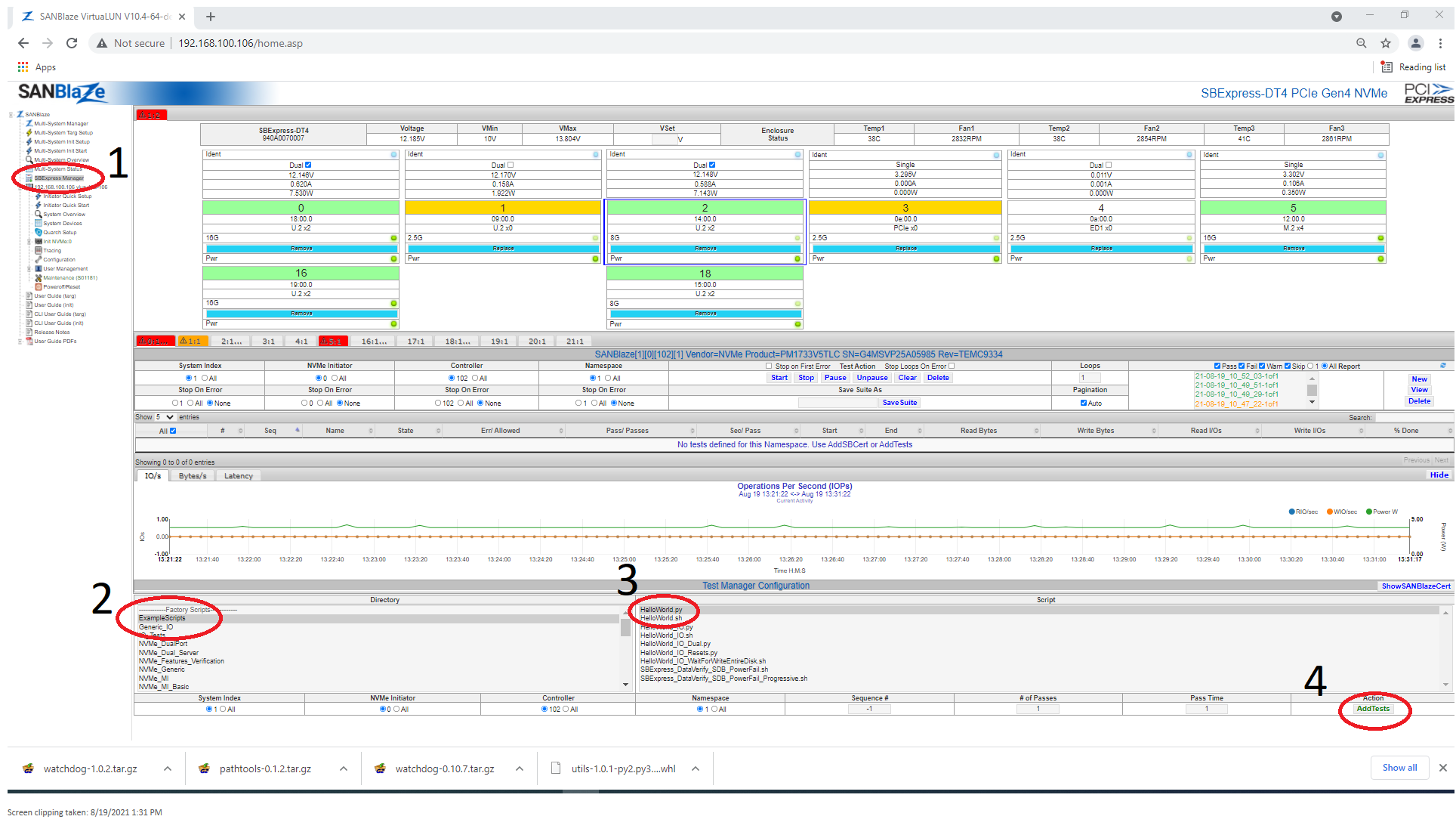
- Add the test:
Select the SBExpress Manager page
Open the Example Scripts folder
Select HelloWorld.py
Add the test to the controller
Run the script in the GUI
Note
When adding a test between steps 1 & 2, you may need to click on the button ShowTestManager in order to see the example scripts folder.
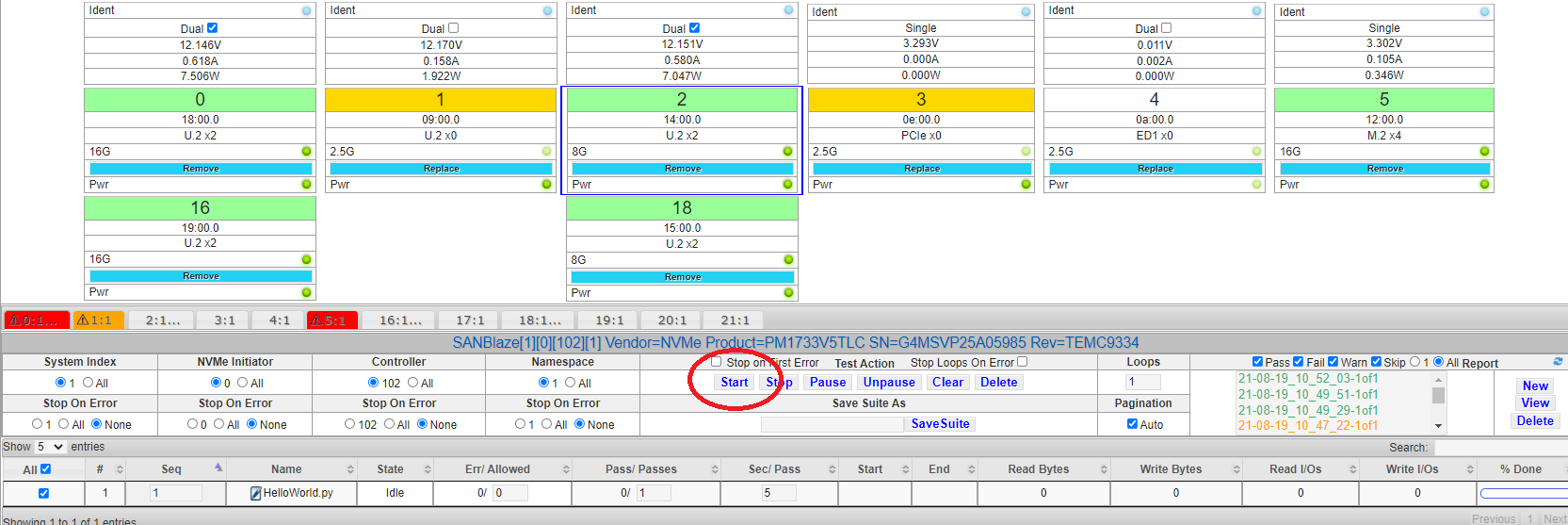
Press the start button to run the test:
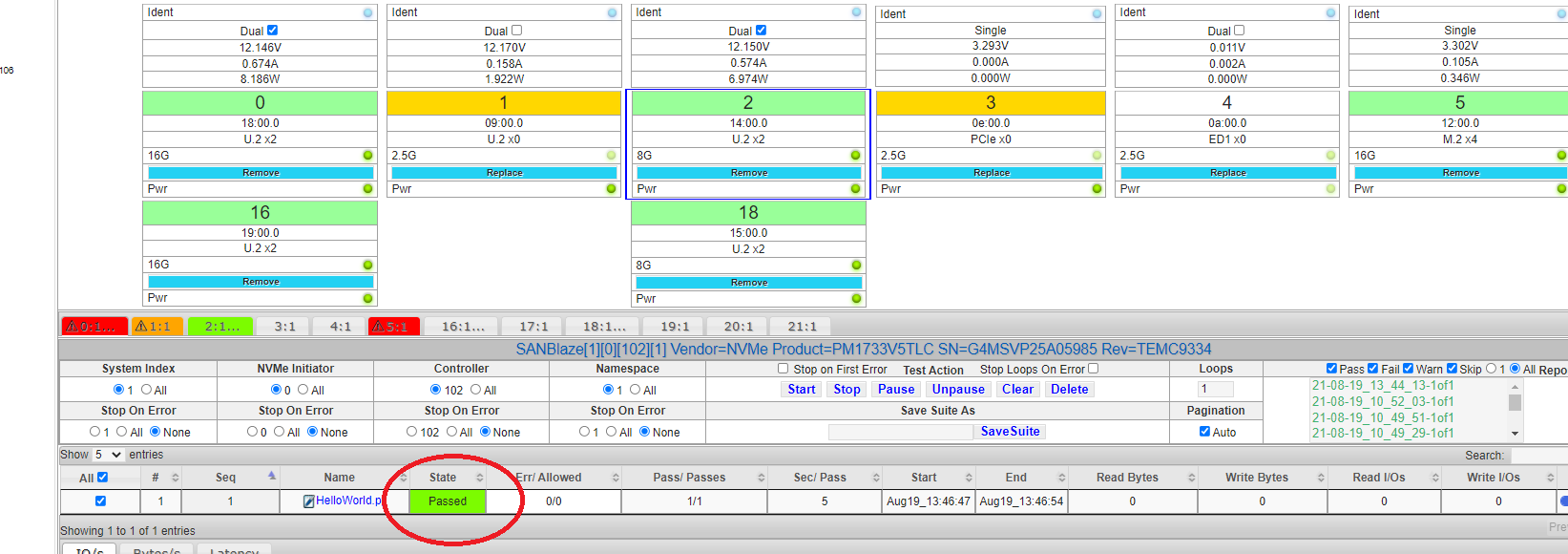
A successful test:
Run the script from the CLI
Adding a test as seen above will automatically place it into the REST tree. From the command line navigate to the test folder like so:
$ cd /rest/sanblazes/1/ports/0/targets/102/luns/1/tests/1
$ sb_python HelloWorld.py
> [root@vlun-100-106 1]# sb_python HelloWorld.py
> Thu Aug 19 13:56:25 2021 DETAIL: Running with SANBlaze_SBCert.py Version=V1.34
> Thu Aug 19 13:56:25 2021 DETAIL: initRESTVars setting pass to 0
> Thu Aug 19 13:56:27 2021 DETAIL: Running HelloWorld.py Version V1.13
Warning
Before attempting to run a script via the CLI, the script must be added using the GUI. In addition to adding the script to the proper location in the REST tree, several other behind the scenes setup actions are performed.